经常在手机上看到可以随意移动的按钮,正巧最近工作遇到了这个需求,索性就写一个,下面这篇文章主要给大家介绍了利用iOS实现一个可以在屏幕中自由移动的按钮的相关资料,需要的朋友可以参考借鉴,下面来一起看看吧。
本文主要给大家介绍了利用iOS实现一个可以在屏幕中自由移动的按钮的相关内容,分享出来供大家参考学习,下面话不多说,来一起看看详细的介绍。
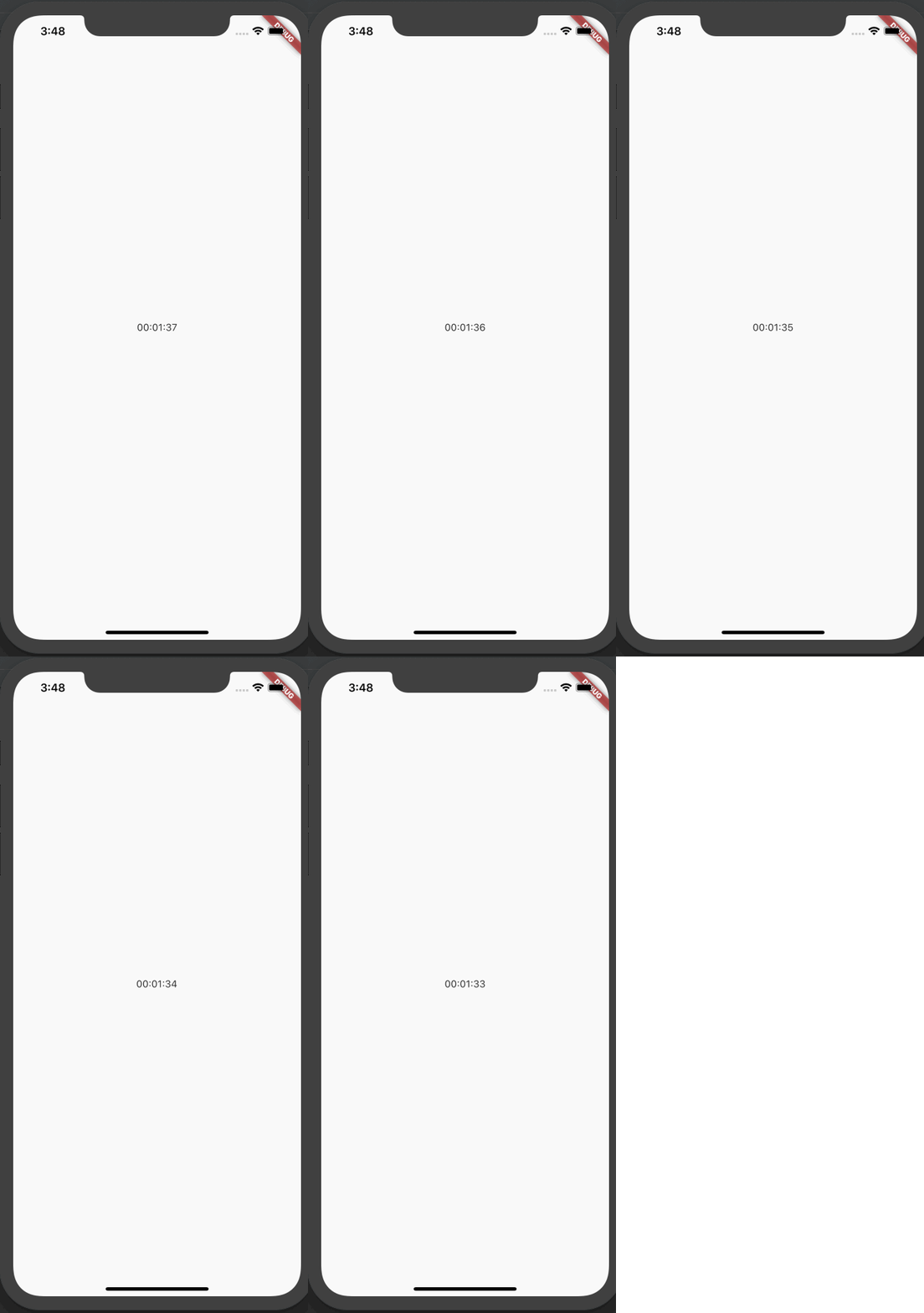
效果图如下:

其实实现很简单,只需要写.m就可以了
示例代码
#import "CrossBtnVC.h"
@interface CrossBtnVC ()
{
 CGPoint beginPoint;
 CGFloat rightMargin;
 CGFloat leftMargin;
 CGFloat topMargin;
 CGFloat bottomMargin;
 CGMutablePathRef pathRef;
}
@property (nonatomic,strong) UIButton *crossBtn;//聊天移动
@end
@implementation CrossBtnVC
- (void)viewDidLoad {
 [super viewDidLoad];
 self.view.backgroundColor = [UIColor whiteColor];

 _crossBtn = [UIButton buttonWithType:UIButtonTypeCustom];
 [_crossBtn setImage:[UIImage imageNamed:@"移动聊天"] forState:UIControlStateNormal];
 _crossBtn.frame = CGRectMake(UI_View_Width-54*UI_Width_Scale, UI_View_Height-103, 40, 40);
 [self.view addSubview:_crossBtn];
 [_crossBtn addTarget:self action:@selector(btnAction:) forControlEvents:UIControlEventTouchUpInside];
 UIPanGestureRecognizer *pan = [[UIPanGestureRecognizer alloc]initWithTarget:self action:@selector(handlePan:)];
 [_crossBtn addGestureRecognizer:pan];

 rightMargin = [UIScreen mainScreen].bounds.size.width-30;
 leftMargin = 30;
 bottomMargin = [UIScreen mainScreen].bounds.size.height-30-50;
 topMargin = 30+64;

 pathRef=CGPathCreateMutable();
 CGPathMoveToPoint(pathRef, NULL, leftMargin, topMargin);
 CGPathAddLineToPoint(pathRef, NULL, rightMargin, topMargin);
 CGPathAddLineToPoint(pathRef, NULL, rightMargin, bottomMargin);
 CGPathAddLineToPoint(pathRef, NULL, leftMargin, bottomMargin);
 CGPathAddLineToPoint(pathRef, NULL, leftMargin, topMargin);
 CGPathCloseSubpath(pathRef);
}
#pragma mark - 事件
- (void)btnAction:(UIButton*)sender{

}
#pragma mark - 手势
- (void)handlePan:(UIPanGestureRecognizer *)pan
{
if (pan.state == UIGestureRecognizerStateBegan) {
beginPoint = [pan locationInView:self.view];
}else if (pan.state == UIGestureRecognizerStateChanged){
CGPoint nowPoint = [pan locationInView:self.view];
float offsetX = nowPoint.x - beginPoint.x;
float offsetY = nowPoint.y - beginPoint.y;
CGPoint centerPoint = CGPointMake(beginPoint.x + offsetX, beginPoint.y + offsetY);
if (CGPathContainsPoint(pathRef, NULL, centerPoint, NO))
{
_crossBtn.center = centerPoint;
}else{
if (centerPoint.y>bottomMargin)
{
if (centerPoint.x<rightMargin&¢erPoint.x>leftMargin) {
_crossBtn.center = CGPointMake(beginPoint.x + offsetX, bottomMargin);
}
}
else if (centerPoint.y<topMargin)
{
if (centerPoint.x<rightMargin&¢erPoint.x>leftMargin) {
_crossBtn.center = CGPointMake(beginPoint.x + offsetX, topMargin);
}
}
else if (centerPoint.x>rightMargin)
{
_crossBtn.center = CGPointMake(rightMargin, beginPoint.y + offsetY);
}
else if (centerPoint.x<leftMargin)
{
_crossBtn.center = CGPointMake(leftMargin, beginPoint.y + offsetY);
}
}
}else if (pan.state == UIGestureRecognizerStateEnded || pan.state == UIGestureRecognizerStateFailed){
}
}
@end总结
以上就是这篇文章的全部内容了,希望本文的内容对各位iOS开发者们能带来一定的帮助,如果有疑问大家可以留言交流,谢谢大家对编程学习网的支持。
织梦狗教程
本文标题为:iOS实现一个可以在屏幕中自由移动的按钮


基础教程推荐


猜你喜欢
- IOS应用内跳转系统设置相关界面的方法 2022-11-20
- Flutter手势密码的实现示例(附demo) 2023-04-11
- android studio按钮监听的5种方法实例详解 2023-01-12
- IOS 播放系统提示音使用总结(AudioToolbox) 2023-03-01
- Flutter绘图组件之CustomPaint使用详解 2023-05-12
- Android开发使用RecyclerView添加点击事件实例详解 2023-06-15
- Android多返回栈技术 2023-04-15
- Android中的webview监听每次URL变化实例 2023-01-23
- iOS开发教程之XLForm的基本使用方法 2023-05-01
- 解决Android Studio突然不显示logcat日志的问题 2023-02-04