这篇文章主要为大家详细介绍了AndroidStudio实现单选对话框,文中示例代码介绍的非常详细,具有一定的参考价值,感兴趣的小伙伴们可以参考一下
本文实例为大家分享了Android Studio实现单选对话框的具体代码,供大家参考,具体内容如下
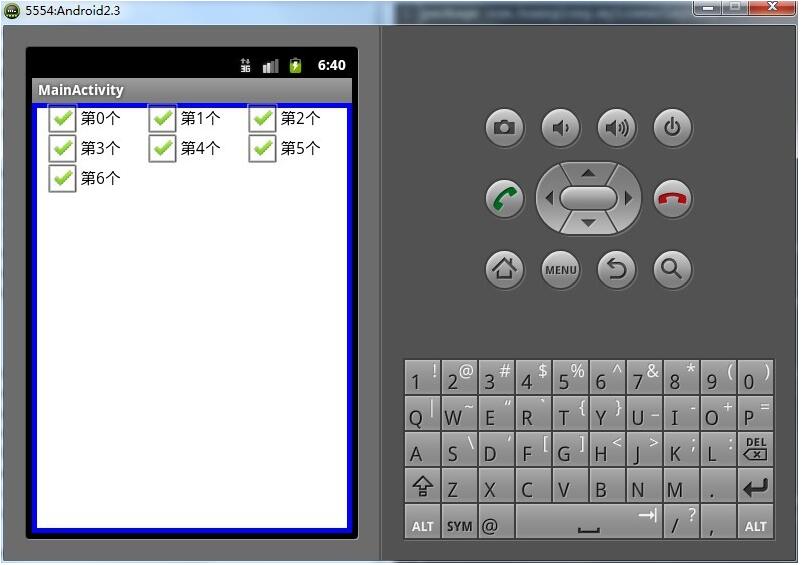
上效果图

activity_main.xml
<?xml version="1.0" encoding="utf-8"?>
<LinearLayout xmlns:android="http://schemas.android.com/apk/res/android"
    xmlns:app="http://schemas.android.com/apk/res-auto"
    xmlns:tools="http://schemas.android.com/tools"
    android:layout_width="match_parent"
    android:layout_height="match_parent"
    tools:context=".MainActivity"
    android:orientation="vertical"
    >
    <TextView
        android:layout_width="match_parent"
        android:layout_height="wrap_content"
        android:text="单选对话框"
        android:textSize="20sp"
        android:layout_marginTop="30dp"
        android:gravity="center"
        android:id="@+id/tv"
        />
    <Button
        android:layout_width="wrap_content"
        android:layout_height="wrap_content"
        android:text="设置字体大小"
        android:id="@+id/btn"
        android:layout_marginTop="20dp"
        android:layout_gravity="center"
        />

</LinearLayout>
MainActivity.java
package com.example.singlechoicedialog;

import androidx.appcompat.app.AppCompatActivity;

import android.app.AlertDialog;
import android.content.DialogInterface;
import android.os.Bundle;
import android.view.View;
import android.widget.TextView;

public class MainActivity extends AppCompatActivity implements View.OnClickListener{
    private AlertDialog dialog;
    private TextView textView;
    private int[] textSizeArr = {10,20,25,30,40};//存储字体大小
    private  String[] fontStyleArr= {"小号","默认","中号","大号","超大"};//存储样式
    int textSize = 1; //单选列表中默认选择的位置
    @Override
    protected void onCreate(Bundle savedInstanceState) {
        super.onCreate(savedInstanceState);
        setContentView(R.layout.activity_main);
        //设置监听
        findViewById(R.id.btn).setOnClickListener(this); //为id为btn的按钮邦定监听
        textView = (TextView) findViewById(R.id.tv);

    }

    @Override
    public void onClick(View view) {
        //  创建对话框并设置其样式(这里采用链式方程)
        AlertDialog.Builder builder = new AlertDialog.Builder(this)//设置单选框列表
                .setTitle("设置字体的大小")   //设置标题
                .setIcon(R.drawable.bdd) //设置图标
                .setSingleChoiceItems(fontStyleArr, textSize, new DialogInterface.OnClickListener() {
                    @Override
                    public void onClick(DialogInterface dialogInterface, int i) {
                        textSize=i; //在OnClick方法中得到被点击的序号 i
                    }
                })
                .setPositiveButton("确定", new DialogInterface.OnClickListener() {//在对话框中设置“确定”按钮
                    @Override
                    public void onClick(DialogInterface dialogInterface, int i) {
                        //为TextView设置在单选对话框中选择的字体大小
                        textView.setTextSize(textSizeArr[textSize]);
                        //设置好字体大小后关闭单选对话框
                        dialog.dismiss();
                    }
                })
                .setNegativeButton("取消", new DialogInterface.OnClickListener() {//在对话框中设置”取消按钮“
                    @Override
                    public void onClick(DialogInterface dialogInterface, int i) {
                        dialog.dismiss();
                    }
                });
        dialog = builder.create();
        dialog.show();
    }
}
以上就是本文的全部内容,希望对大家的学习有所帮助,也希望大家多多支持编程学习网。
织梦狗教程
本文标题为:Android Studio实现单选对话框


基础教程推荐


猜你喜欢
- IOS应用内跳转系统设置相关界面的方法 2022-11-20
- Flutter手势密码的实现示例(附demo) 2023-04-11
- 解决Android Studio突然不显示logcat日志的问题 2023-02-04
- Android开发使用RecyclerView添加点击事件实例详解 2023-06-15
- iOS开发教程之XLForm的基本使用方法 2023-05-01
- Flutter绘图组件之CustomPaint使用详解 2023-05-12
- Android中的webview监听每次URL变化实例 2023-01-23
- Android多返回栈技术 2023-04-15
- android studio按钮监听的5种方法实例详解 2023-01-12
- IOS 播放系统提示音使用总结(AudioToolbox) 2023-03-01